
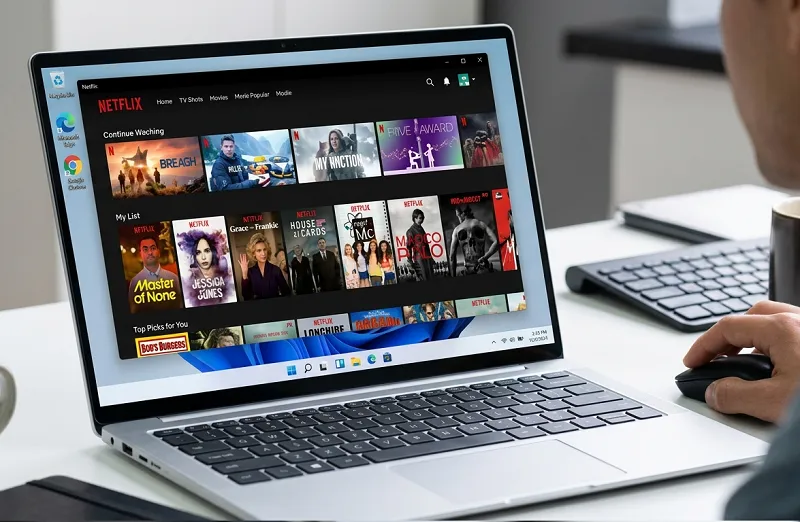
How to Download and Install Netflix App on Windows 11/10 PC: The Ultimate High-Performance Guide

Accessing the expansive library of films, series, and live broadcasts on personal computers has reached a new level of sophistication. The official application for Windows provides a gateway to enhanced features specifically tailored for desktop environments, integrating seamlessly with the OS to offer capabilities that extend far beyond a standard web browser. Users benefit from optimized 4K playback, spatial audio support, and real-time access to global live events, making it a cornerstone of modern home entertainment.
As streaming demand for high-fidelity content intensifies, understanding the current installation and optimization process is vital. Before diving into the immersive world of ultra-high-definition streaming, ensure your digital foundation is as fast as your connection. For those managing media-heavy sites, a routine wordpress database cleanup is essential to maintain site performance while you enjoy your favorite content. This guide delineates the exact path to transforming your PC into a premier cinema hub.
I. System Requirements for Ultra-HD and HDR Playback
To leverage the full power of the Windows application, your hardware must align with the current standards for high-bitrate streaming. While the app is compatible with most modern machines, 4K Ultra HD and HDR (High Dynamic Range) require specific configurations to trigger the highest quality profiles.
- Operating System: Windows 10 (Version 1803+) or Windows 11.
- Processor: Intel 7th Gen Core CPU or newer, or AMD Ryzen equivalent.
- Graphics: Integrated or dedicated GPUs supporting DirectX 12 and HDCP 2.2.
- Display: A 4K-capable monitor with a 60Hz refresh rate.
- Connection: A stable broadband speed of at least 25 Mbps for 4K.
Pro Tip: Many Windows systems require the HEVC Video Extension from the Microsoft Store to decode 4K and HDR streams effectively. Without this codec, the app may cap your resolution at 1080p despite having a Premium subscription.
II. Downloading the Official Application via Microsoft Store
Step 1: Navigating the Digital Storefront
Launch the Microsoft Store by selecting its icon from your taskbar or searching the Start menu. This is the only official channel for the verified application, ensuring your software is secure and receives automatic updates for new features like Live Sports and Awards Shows.
Utilize the search bar at the top, typing “Netflix” precisely. The official entry, developed by Netflix, Inc., is easily identifiable by the signature red logo. Selecting the app will open a detailed preview page where you can verify compatibility and read user reviews.
Step 2: Installation and Initial Setup
Click the Get or Install button. The download size is approximately 150MB and completes rapidly on high-speed connections. Once the installation is finished, click Launch to begin the setup. If you are managing multiple accounts or high-performance servers, remember that security is paramount; just as you protect your local app, ensure your web assets are guarded by an enterprise security architecture framework to prevent unauthorized access.
III. Account Integration and Profile Management
The current application interface supports all subscription tiers, including the ad-supported plans and the Premium 4K tier. Upon signing in, the app allows for the creation of up to five distinct profiles, each with its own personalized algorithm and viewing history.
For families, Parental Controls are a key feature. You can set maturity ratings for specific profiles and lock them with a 4-digit PIN, ensuring that younger viewers only access age-appropriate content. Additionally, the app now supports real-time synchronization across devices, allowing you to pause a movie on your PC and resume it instantly on your mobile device.
IV. Accessing Live Events and Specialized Content
A major evolution in the Windows ecosystem is the Live Events Tab. Netflix now broadcasts real-time global events—ranging from live comedy specials and awards ceremonies to high-profile sporting events like WWE Raw or boxing matches. These events are accessible directly from the home screen and support interactive features like real-time polling and live chat on select broadcasts.
Note for Ad-Tier Users: While most content includes brief commercial breaks, live events are handled with specific ad-placement strategies to ensure the most critical moments of the broadcast remain uninterrupted.
V. Troubleshooting and Performance Optimization
Resolving Buffering and Connection Drops
If you experience lag or low-resolution playback, the first step is a network diagnostic. Use the command ipconfig /flushdns in the Windows Terminal to clear your DNS cache. If you are using a VPN, ensure it is configured to support high-speed streaming, as many servers can throttle bandwidth, leading to a downgrade in visual quality.
Fixing Installation Errors
Common errors like “Something happened on our end” usually stem from a corrupted Store cache. You can resolve this by navigating to Settings > Apps > Microsoft Store > Advanced Options and clicking Reset. This restores the Store’s functionality without deleting your installed applications.
For those new to site management or looking to build a brand around entertainment content, mastering the basics of search visibility is essential. Check out our SEO for beginners guide to help your content rank alongside major industry leaders.
VI. Pro Tips for the Ultimate Viewing Experience
- Spatial Audio: Enable Windows Sonic for Headphones or Dolby Atmos in your system sound settings to experience immersive, 3D soundscapes.
- Keyboard Shortcuts: Use the Spacebar to play/pause, F for full screen, and the Arrow Keys to skip back or forward 10 seconds.
- Custom Headers: If you are a content creator showcasing your setup, learn how to build a wordpress custom header to give your blog a premium, cinematic feel.
- Display Calibration: Use the Windows HDR Calibration App to ensure your monitor’s peak brightness matches the app’s output for perfect contrast.
Frequently Asked Questions
Can I watch Netflix offline on Windows? In the current version of the Windows application, the offline download feature has been transitioned to mobile-centric platforms. For Windows users, streaming is the primary method of consumption to support live and ad-tier features.
Does the app support 5.1 Surround Sound? Yes, provided your hardware is connected via HDMI or Optical and your Windows sound settings are configured for 5.1 output.
Is the ad-supported plan available on the Windows app? Absolutely. The latest update fully integrates ad-supported tiers, providing a cost-effective way to access the full library with minimal interruptions.
Conclusion
Mastering the Netflix app on Windows is the key to unlocking a premium, 4K HDR entertainment ecosystem. From the initial installation via the Microsoft Store to the advanced calibration of spatial audio and HDR profiles, the desktop application remains the most powerful way to experience global cinema and live events. By following these optimization strategies and keeping your system updated, you ensure that every viewing session is a high-performance experience.