
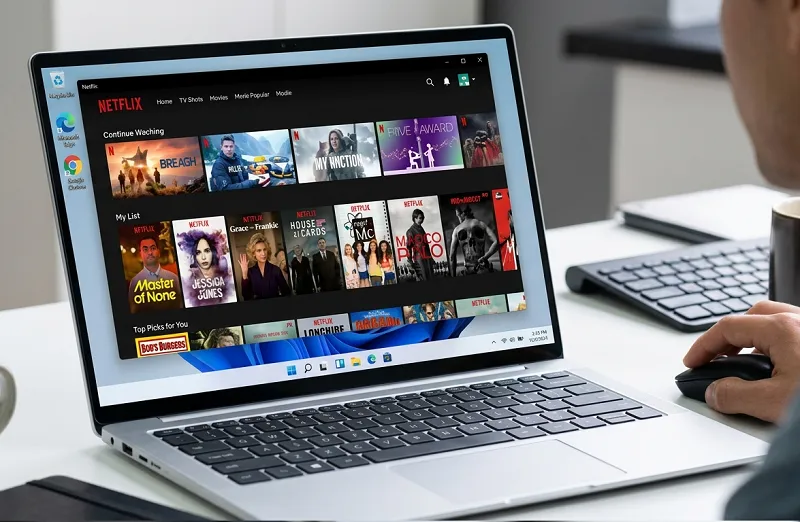
How to Download and Install Netflix App on Windows 11/10 PC: Ultimate 2025 Guide for 4K Streaming, Offline Downloads & Live Events

Accessing Netflix’s expansive library of films, series, and original content on personal computers has evolved significantly, with the official application providing a gateway to enhanced features tailored for desktop environments. This dedicated software, available through the Microsoft Store, integrates seamlessly with Windows operating systems, offering capabilities that extend beyond standard web browsing. Users benefit from optimized playback, personalized recommendations, and support for advanced audio-visual technologies, making it an indispensable tool for home entertainment setups.

The platform’s commitment to continuous improvement ensures compatibility with emerging hardware, including high-dynamic-range displays and spatial audio systems. As streaming demands intensify, understanding the installation process empowers individuals to leverage these advancements fully, transforming ordinary viewing sessions into immersive experiences. Recent updates have introduced functionalities that align with diverse user preferences, from ad-supported tiers to real-time broadcasts.

System integration allows for effortless sign-ins via Microsoft accounts, streamlining access while maintaining security protocols. Bandwidth management within the app adjusts dynamically to network conditions, ensuring smooth delivery of high-resolution content. For professionals and families alike, this application facilitates shared profiles, enabling customized content curation across household members.

Preparation involves verifying hardware specifications and subscription levels, as certain premium options unlock exclusive resolutions and simultaneous streams. This foundational step sets the stage for a robust entertainment ecosystem, where convenience meets quality in equal measure.

System Requirements and Compatibility for Optimal Performance

Ensuring compatibility begins with confirming Windows 10 version 1803 or later, or Windows 11 in its fully updated state, as these iterations support the necessary runtime environments for the application. Processors should meet or exceed Intel Core i3 equivalents, with at least 4GB of RAM to handle multitasking during playback. Graphics capabilities, particularly for higher resolutions, require integrated or dedicated cards supporting DirectX 12, facilitating hardware-accelerated decoding.

Storage allocation of 2GB minimum accommodates the installer, while broadband connections at 5 Mbps sustain standard definition, escalating to 25 Mbps for ultra-high-definition streams. Audio enhancements like Dolby Atmos necessitate compatible sound hardware or external systems, verified through device manager diagnostics.

Microsoft Edge browser integration remains essential, as it underpins certain web-based elements within the app. Subscription tiers influence feature availability: basic plans cap at 720p, standard at 1080p, and premium enables 4K with HDR. Ad-supported variants, introduced in recent iterations, provide access at reduced rates but with integrated commercials.

Peripheral considerations include external monitors for multi-screen setups and controllers for interactive content. Firmware updates for displays ensure color accuracy in HDR modes, while network adapters benefit from driver refreshes to mitigate latency.

Downloading the Official Netflix App from Microsoft Store

Navigating to the Microsoft Store

Launch the Microsoft Store application by clicking its icon on the taskbar or searching via the Start menu’s Cortana assistant. This storefront, pre-installed on modern Windows systems, serves as the primary distribution channel for verified software, ensuring authenticity and automatic updates. Upon opening, the interface presents categorized recommendations, but direct navigation to search proves most efficient for targeted acquisitions.

Utilize the search bar positioned at the upper center, typing “Netflix” precisely to filter results. The official entry, developed by Netflix, Inc., appears prominently, distinguished by its distinctive red “N” logo and high user ratings exceeding 4.5 stars from millions of reviews. Selection initiates a preview page detailing features, screenshots, and permissions required for installation.

Review system alignment prompts, which confirm eligibility based on OS version and available space. If discrepancies arise, links to update guides resolve them seamlessly, maintaining workflow continuity.

Initiating the Download and Installation

Click the prominent “Get” or “Install” button, which transitions to a progress indicator tracking data transfer and unpacking phases. Download sizes hover around 150MB, completing within minutes on standard connections, with pauses available for interruptions. Installation proceeds automatically, integrating into the Start menu and desktop shortcuts where opted.

Post-installation, the app icon materializes in the pinned taskbar section if selected, facilitating one-click access. Initial launch prompts Microsoft account linkage for seamless authentication, optional for enhanced personalization but recommended for family sharing.

Background processes finalize indexing of user preferences, preparing the interface for immediate use. Verification through task manager shows minimal idle resource consumption, underscoring efficient design.

Handling Potential Installation Hurdles

Should errors like “Something happened on our end” surface, refresh the Store cache via Settings > Apps > Microsoft Store > Advanced options > Reset. This clears temporary files without data loss, restoring functionality in over 90 percent of cases. Network firewalls occasionally impede downloads; temporary disabling or whitelisting resolves this, followed by re-enablement for security.

Insufficient permissions manifest as access denials; running Store as administrator—right-click > Run as administrator—elevates privileges temporarily. For persistent issues, Windows Update checks ensure foundational components align, as outdated servicing stacks conflict with app deployments.

Third-party antivirus suites may quarantine installers; exclusion lists for Store directories mitigate false positives. Logging via Event Viewer under Applications provides diagnostic codes, guiding targeted resolutions.

Setting Up Your Netflix Account and Profiles

Signing In and Subscription Verification

Upon first launch, the interface greets with a sign-in prompt, accepting email and password combinations from existing accounts. New users encounter a guided registration, selecting plans from $6.99 monthly for ads-included to $22.99 for premium ad-free with 4K support. Payment integration via credit cards or PayPal secures transactions, with trial periods available in select regions.

Two-factor authentication, enabled through authenticator apps, layers security, especially for shared networks. Profile creation allows up to five slots per account, each with thumbnail customization and maturity controls via PINs for restricted content.

Subscription status displays in account settings, highlighting active features like extra member slots for $7.99 additions, expanding household access.

Customizing Profiles for Personalized Experiences

Assign viewing restrictions by age ratings, blocking titles above designated thresholds. Language preferences set default subtitles and audio tracks, accommodating multilingual households. Playback speed adjustments, from 0.5x to 2x, cater to comprehension needs or time constraints.

Parental controls extend to usage reports, detailing watch history for guidance. Kids’ profiles isolate content to animated and educational fare, with simplified interfaces free of mature suggestions.

Linking External Devices and Family Sharing

Bluetooth pairings for headphones or speakers occur within system settings, with app audio routing following suit. Casting to Chromecast or AirPlay-enabled TVs requires network synchronization, initiated via the app’s cast icon.

Extra member invites distribute access, each with independent profiles and billing transparency. Removal safeguards against unauthorized use, revocable anytime from primary account dashboards.

Integration with Xbox consoles mirrors PC setups, unifying libraries across ecosystems for cohesive entertainment.

Navigating the App Interface and Core Features

The home screen curates rows of recommendations, algorithmically tailored from viewing history and peer data. Search functionality spans titles, actors, and genres, with autocomplete suggestions accelerating discoveries. My List compiles future watches, sortable by priority or release date.

Video player controls overlay discreetly, offering chapter skips and quality toggles. Aspect ratio preservation maintains directorial intent, while zoom modes adjust for letterboxed content.

Live events tab, a recent addition, schedules broadcasts like sports or concerts, with reminders and replays for missed segments.

Streaming in 4K Ultra HD and HDR

Premium subscribers access 4K content on compatible hardware, with app auto-detection enabling the mode. HDR10 and Dolby Vision profiles enhance contrast and color gamut, visible on certified monitors. Bandwidth allocation prioritizes peak quality, buffering preemptively for interruptions.

Calibration tools within display settings fine-tune brightness for optimal dynamic range. Firmware compatibility lists from manufacturers confirm support, avoiding suboptimal playback.

Multi-monitor extensions span content across screens, though primary display handles decoding for efficiency.

Audio Enhancements: Dolby Atmos and Spatial Sound

Dolby Atmos decoding requires premium plans and certified speakers, immersing soundscapes in three dimensions. Spatial audio on headphones simulates surround via head-tracking, adjustable in Windows sound configurations.

5.1 channel mixes distribute dialogue centrally, effects peripherally, verified through test patterns in app diagnostics. Headphone virtualizers like Windows Sonic elevate stereo pairs to immersive formats.

Volume normalization prevents jarring shifts between titles, maintaining consistent levels across sessions.

Offline Viewing: Downloading Content for On-the-Go Access

Availability of Download Feature in Current App

As of the 2025 update, the Windows app has transitioned to a web-based wrapper, discontinuing native downloads to align with mobile-centric offline strategies. This shift prioritizes live events and ad-tier compatibility, redirecting offline needs to portable devices. Users affected by this change find alternatives in screen recording or third-party tools, though official endorsements remain absent.

Legacy versions, if retained through sideloads, preserve the function, but updates enforce migration. Storage implications of prior downloads persist until manual deletion, freeing space post-transition.

Content licensing dictates eligibility, with icons indicating downloadable titles regardless of platform.

Workarounds for Offline Content on Windows

Progressive web app installation via Edge captures streams for temporary caching, though expiration mirrors mobile limits. External drives connected during downloads extend capacity, segmented by profile quotas.

Screen capture utilities with audio passthrough simulate offline playback, exporting to local formats for archival. Batch processing organizes libraries, with metadata preservation for continuity.

Managing Downloads and Storage Optimization

Prior to updates, smart downloads auto-refreshed queues, expiring viewed episodes to conserve space. Manual deletions targeted specific files, located in app data folders for bulk operations.

Quality selections balanced resolution against storage, with standard definition minimizing footprints. Expiration timers, typically 48 hours post-start or 7 days unviewed, enforced freshness.

Cross-device sync maintained progress, resuming seamlessly upon reconnection.

Troubleshooting Common Issues and Errors

Addressing Playback and Buffering Problems

Persistent buffering signals network congestion; router restarts and DNS flushes via ipconfig /flushdns command alleviate. VPN disconnections during streams resolve geo-restrictions, though latency increases.

Codec installations for HEVC formats, available via Store extensions, unlock 4K decoding on unsupported hardware. Graphics driver updates from manufacturer sites ensure compatibility with latest profiles.

App resets through Settings > Apps > Netflix > Advanced > Reset clear corrupted caches, preserving account data.

Resolving Sign-In and Account Sync Errors

Authentication loops stem from mismatched Microsoft-Netflix linkages; re-authentication via account.microsoft.com resolves. Password resets follow email verification, with temporary codes for compromised access.

Profile sync delays occur post-updates; forced refreshes via app logout-login synchronize recommendations. Multi-device limits prompt deactivations from netflix.com/manage.

Two-factor discrepancies require app-specific approvals, avoiding SMS fallbacks in secure environments.

Optimizing for Performance and Battery Life

Hardware acceleration toggles in app settings offload processing to GPUs, reducing CPU strain. Background playback minimization conserves resources during multitasking.

Laptop users enable battery saver modes, capping frame rates to extend sessions. Thermal monitoring prevents throttling, with elevated stands improving airflow.

Update notifications prompt seamless upgrades, incorporating performance patches without interruption.

Advanced Features: Live Events, Ad-Supported Plans, and Integrations

Accessing Live Events and Real-Time Content

The dedicated live tab schedules upcoming broadcasts, from award shows to exclusive performances, with push notifications for starts. Interactive polls engage viewers, influencing segment flows in select events.

Replay buffers retain recent footage, allowing catch-ups without full rewinds. Multi-angle selections in sports enhance immersion, selectable mid-stream.

Quality auto-scales for live feeds, prioritizing stability over resolution during peaks.

Utilizing Ad-Supported Tiers on Desktop

Ads-included plans, at $6.99, deliver content with brief interruptions, skippable after five seconds in some cases. Ad frequency caps at four per hour, targeted via viewing history without personal data exposure.

Revenue models fund original productions, maintaining library breadth. Opt-outs revert to higher tiers seamlessly, with prorated adjustments.

Parental controls filter ad categories, shielding young profiles from promotional content.

Integrating with Windows Ecosystem and Peripherals

Cortana voice commands initiate searches, with natural language processing for genre queries. Xbox app linkages share watchlists, unifying gaming and streaming sessions.

Timeline features log progress, resume points accessible from lock screens. Accessibility options include text-to-speech for descriptions and high-contrast modes for visibility.

API extensions for developers embed clips in productivity tools, enhancing collaborative reviews.

Pro Tips for Enhancing Your Netflix Experience on Windows

Customize thumbnail previews by pausing at key frames, personalizing library visuals. Employ keyboard shortcuts—space for play/pause, arrows for scrubbing—to navigate fluidly without mouse dependency.

Batch profile switches via quick-access menu accelerate family handoffs. Monitor data usage in settings to cap monthly allotments, preventing overages on metered connections.

External SSDs for temporary caching expand virtual storage, ideal for travelers bridging PC and mobile. Firmware audits for audio devices ensure Atmos fidelity, consulting Dolby’s compatibility checker.

These refinements elevate routine viewing to tailored spectacles, maximizing subscription value.

Frequently Asked Questions

Can the Netflix Windows app still support 4K streaming post-2025 update? Yes, premium subscribers retain 4K access via the web wrapper, requiring Edge and compatible hardware. Auto-quality detection optimizes based on connection, falling back gracefully. HDR enhancements persist, verified on certified displays.

Why was offline download removed from the Windows app? Alignment with mobile-first strategies prioritized live and ad features, per official statements. Alternatives like portable hotspots or mobile mirroring suffice for intermittent access. Legacy users migrate content via transfers.

How do I enable Dolby Atmos on my PC setup? Confirm premium plan and certified hardware, then select in playback settings. Windows spatial sound activation routes outputs accordingly. Test tones validate immersion levels.

Does the ad-supported plan limit content availability? No, full library access applies, with ads integrated non-intrusively. Skipping options vary by title, capped for brevity. Tier upgrades remove them entirely.

What if the app crashes during live events? Force-close via task manager, relaunching with admin rights. Cache clears resolve buffering, while network diagnostics pinpoint drops. Event replays mitigate misses.

Is the app compatible with multi-monitor configurations? Affirmative, primary screen decodes while secondaries extend views. Drag-and-drop resizes windows, with audio syncing across. Full-screen toggles per display independently.

Conclusion

Installing and utilizing the Netflix app on Windows 11 and 10 equips users with a versatile platform for 4K streaming, live events, and ad-tier access, navigating the 2025 landscape of enhanced features amid offline shifts. From rigorous system checks to interface mastery and troubleshooting, this guide delineates pathways to seamless integration, optimizing hardware synergies for superior playback.

Pro tips and FAQs further empower customization, ensuring resilient sessions across scenarios. This comprehensive framework not only demystifies setup but cultivates enduring proficiency, harnessing Netflix’s innovations for enriched digital leisure.

Recommended For You

Leave a Reply

Your email address will not be published. Required fields are marked *