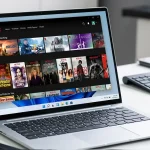


Using streaming apps on a desktop operating system has become increasingly common as more people prefer the larger screen, better performance, and multitasking features of a laptop or PC. Windows 11 offers a modern interface designed for media consumption, and the Netflix app is one of the most popular choices among users who want to watch movies and shows offline. Installing the application on a compatible device provides a secure and official way to download videos, manage profiles, and stream high-quality content without relying solely on a browser. This guide explains every step required to install the software safely, configure it correctly, and troubleshoot common issues without exposing your device to harmful downloads or unauthorized tools.
Users sometimes encounter misleading websites that claim to offer free Netflix downloads for Windows. Many of these pages provide unofficial installers or executable files that can harm a device or compromise personal information. Only official sources should ever be used, and this guide highlights how to avoid unsafe downloads while still fully enjoying the features available to Windows users. By following safe methods and using trusted platforms, anyone can ensure their experience remains smooth, secure, and completely legitimate.
Windows 11 includes several improvements over previous versions, making it easier to use streaming apps. These improvements include performance optimizations, better system resource allocation, and compatibility with modern applications released through the official Microsoft Store. Instead of using a web browser every time you want to access your content, installing the dedicated app provides a smoother interface and additional functionality. This guide walks through the installation process step by step, discusses offline viewing options, and outlines ways to optimize the experience.
Checking Device Requirements
Before installing the Netflix application, it is important to confirm that your laptop or desktop meets the minimum requirements. Windows 11 typically performs better than earlier versions of the operating system, but older devices may still encounter limitations. Ensuring compatibility ahead of time prevents installation issues and provides a seamless experience once the app is installed. Basic requirements include the latest version of Windows 11, an active Microsoft account to access the Microsoft Store, and enough storage space to download and run the app.
In addition to system compatibility, users should confirm that certain background services are functioning properly. For example, both the Microsoft Store Install Service and Windows Update must be enabled for apps to install correctly. If either service is disabled, the installation process may fail or the application may not appear in search results. Checking these settings early ensures that users do not run into unnecessary barriers later. It also guarantees better system stability and improved performance when running multimedia applications.
A stable internet connection is essential for streaming and downloading videos. While the installation file for the application is small, downloading movies or shows requires significant data. Ensuring that the device has a strong, stable network connection will provide a smoother experience, especially when downloading videos for offline use. For users with limited bandwidth, scheduling downloads during off-peak hours may help speed up the process and reduce interruptions.
Installing the Official Netflix App
The safest method to obtain the Netflix application is through the Microsoft Store. This eliminates the dangers associated with visiting unverified websites or downloading executable files from unknown sources. The installation process is simple and takes only a few minutes. Accessing the store from the Start menu or taskbar provides immediate access to thousands of official applications verified by Microsoft. Searching for the Netflix app in the store ensures that the download comes directly from the company and not from third-party distributors.
Once the application appears in the search results, selecting the correct listing is essential. The app is published by a verified provider, and users should ensure the name matches the official publisher before proceeding. The app information page includes screenshots, a detailed description, compatibility notes, and user reviews. Reviewing these details helps confirm that the correct software is being downloaded. Once verified, selecting the installation option begins the process automatically, and no additional configuration is required.
After installation, the Netflix application becomes available in the Start menu. Users can pin it to the taskbar or desktop for easier access. Launching the application for the first time may trigger a sign-in prompt, requiring the user’s official account credentials. This sign-in process is secure when done through the application itself, as the app uses encrypted communication to transmit information. After signing in, users can personalize their profiles, adjust playback settings, and begin browsing available content.
Configuring the Application
Once the application is installed, users should explore its settings to optimize performance and viewing experience. The app provides a range of options, including video quality customization, language preferences, profile management, and offline download settings. Adjusting these preferences early helps ensure smooth performance on slower devices and enhances video quality for high-performance systems. Selecting the correct settings also ensures that downloaded videos do not take up more storage space than necessary.
Users can access the app settings from the main menu. Video playback controls include data usage preferences, streaming quality, and subtitle settings. Adjusting these options is especially useful for users watching content on slower internet connections. Lowering the video quality during peak usage hours may reduce buffering, while selecting higher quality options ensures the best experience on fast connections. Subtitles and audio settings allow users to choose their preferred language and accessibility options.
Another important section within the settings menu is the download configuration panel. This area allows users to manage how content is stored and downloaded for offline viewing. Users can choose their preferred download quality, set storage limits, and determine where downloaded files will be stored. Managing storage space is particularly important for devices with limited capacity, as high-quality videos can take up significant amounts of memory. Clearing unused files periodically ensures that the device continues running smoothly.
Downloading Movies and Shows Offline
Offline downloads are one of the biggest advantages of using the dedicated application instead of relying solely on a browser. The application allows users to download episodes, movies, and documentaries directly to their device for viewing without an internet connection. This feature is especially helpful for travelers, students, and users who experience inconsistent network connections. Downloaded content remains available as long as the device meets licensing rules and remains connected occasionally for verification.
To download content, users simply need to select a title and check whether the download icon appears next to it. Not all titles are available for offline viewing due to licensing restrictions, but a large portion of the library supports this option. Once a download begins, users can monitor progress from the dedicated download section within the application. Progress bars, estimated time remaining, and quality settings provide helpful information during the process.
Downloaded content can be accessed from the downloads tab at any time. The app organizes saved content by series, season, and movie title, making it easy to locate specific videos. Users can delete individual items or clear entire categories to free up space. The ability to organize downloaded content ensures that the user’s library remains manageable, especially when storing long series or multiple movies. This level of control helps prevent storage issues and keeps the device running efficiently.
Troubleshooting Common Issues
While the installation and usage process is generally straightforward, some users may encounter errors. Common issues include the application not appearing in the Microsoft Store, problems signing in, unexpected crashes, or difficulties downloading content. These problems can occur for various reasons, including outdated system software, corrupted files, or network connectivity issues. Understanding the common causes and knowing how to troubleshoot them can save time and prevent frustration.
If the application does not appear in the Microsoft Store, checking for system updates is a helpful first step. Windows updates often include important fixes that improve compatibility with store applications. Users can also reset the store cache using built-in tools to resolve loading issues. Another effective troubleshooting step involves signing out of the Microsoft Store and signing back in using the same account used to install other applications. These simple steps can resolve most visibility and installation problems.
Problems with streaming or downloading content are often caused by network issues. Ensuring a strong Wi-Fi connection, restarting the router, or switching to a wired connection can help resolve buffering or download errors. If playback problems persist, users can adjust video quality settings, clear the app cache, or temporarily turn off VPNs and firewalls that may interfere with streaming. Restarting the application or reinstalling it from the Microsoft Store may resolve persistent software issues.
Optimizing Storage and Performance
Managing storage is essential for users who frequently download content for offline viewing. High-resolution videos can consume substantial amounts of space, and laptops with smaller drives may fill up quickly. Fortunately, the application provides built-in tools to help users manage their storage effectively. For example, users can select lower download quality options to reduce file size or automatically delete watched episodes to conserve space.
Optimizing device performance also improves the overall viewing experience. Closing unnecessary apps while streaming helps reduce background usage of system resources. Keeping the device plugged in during long viewing sessions prevents performance throttling caused by low battery. Clearing temporary files and using the built-in Windows storage manager helps keep the device running efficiently. Users with solid-state drives will generally experience even smoother performance due to faster read and write speeds.
Another useful strategy involves adjusting power and display settings. Switching to performance mode improves video playback quality, while enabling night mode reduces eye strain during extended viewing. Combining these optimizations provides a smoother, more enjoyable streaming experience. Regularly checking storage usage and making small adjustments as needed helps maintain system stability and prevents slowdowns related to insufficient memory or processing power.
Best Practices for Safe Usage
Ensuring safety while using streaming applications is important. Users should avoid third-party websites that offer modified versions of streaming apps or claim to provide special features not included in the official application. These versions often contain malware or unauthorized tracking tools. Using only verified sources ensures that the software remains secure and that user data is protected at all times. Avoiding unofficial downloads also prevents compatibility issues that may arise from using outdated or altered files.
Maintaining account security is another important practice. Users should avoid sharing their login information with untrusted individuals. Enabling multi-factor authentication on their accounts helps prevent unauthorized access. Passwords should be strong, unique, and not reused across different platforms. Keeping devices updated ensures that potential security vulnerabilities are minimized. These precautions help maintain account integrity and protect personal data, including viewing history and payment information.
Users should also be cautious when browsing the internet for guides or software related to streaming applications. Some pages include misleading download links or advertisements designed to resemble official sources. Avoid clicking unknown links or downloading software from unverified publishers. Always check that the browser displays the correct website address before entering personal information. This level of caution helps prevent data theft, malware infections, and account compromise.
Using Browser Mode vs. App Mode
Some users prefer accessing the streaming service through a web browser instead of the official app. While browser mode offers convenience and requires no installation, it lacks certain features available in the dedicated application. One of the biggest limitations is the inability to download content for offline viewing. Browsers also rely on the stability of the internet connection for consistent performance. While the browser version is fully functional for regular streaming, it does not provide the same level of optimization.
The dedicated application offers better compatibility with Windows 11 system features. For example, the app supports tablet mode, touch input, offline storage, and easier navigation through Windows shortcuts. It also integrates with system-level notifications, picture-in-picture mode, and video playback enhancements. These features contribute to a superior overall experience and make the application the recommended choice for most users seeking enhanced functionality.
Choosing between browser mode and app mode ultimately depends on individual preferences. Users who prefer quick access without installation may choose the browser, while those who want offline viewing and enhanced system integration will benefit from using the dedicated application. Understanding the strengths and limitations of each method ensures that users make the best decision based on their device capabilities and viewing habits.
Conclusion
Installing and using the official application on a Windows 11 laptop provides a secure and efficient way to enjoy streaming content. The process is simple, and the application offers features that enhance performance, usability, and offline viewing. By following safe installation practices, adjusting settings appropriately, and managing storage effectively, users can ensure a smooth and enjoyable entertainment experience. With proper precautions and an understanding of best practices, anyone can take advantage of the app’s capabilities while keeping their device secure and running optimally.