
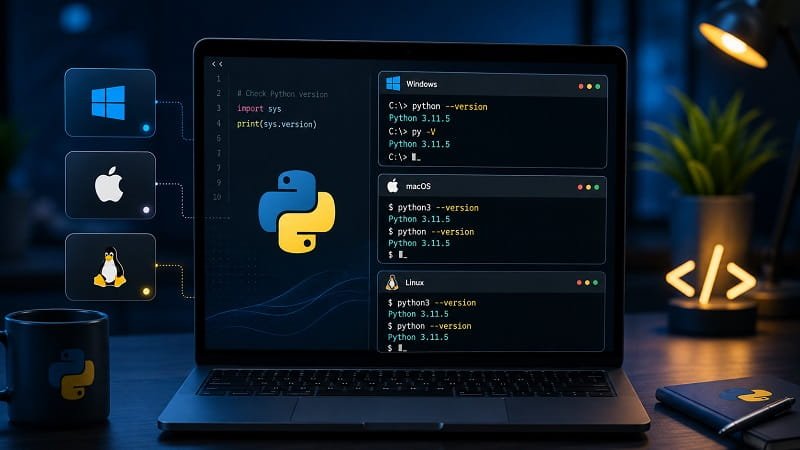

Knowing the exact version of Python installed on your system is essential for developers, system administrators, and anyone working with code. Python evolves rapidly, with new features, security patches, and improvements introduced in each release. Whether you’re troubleshooting compatibility issues, ensuring your environment meets project requirements, or simply verifying an installation, checking the version helps avoid unexpected errors. For instance, some libraries require Python 3.8 or higher, while older scripts might rely on deprecated features from earlier versions.
Python has a rich history, starting from its initial release in 1991 by Guido van Rossum. The major shift occurred with Python 3 in 2008, which introduced breaking changes from Python 2 to improve the language’s consistency and future-proof it. Python 2 reached end-of-life in 2020, making Python 3 the standard. As of late 2025, the latest stable release is Python 3.14, offering enhanced performance, better error messages, and new syntax features like improved pattern matching.
Version numbers follow a semantic format: major.minor.micro. The major version indicates significant changes, minor adds features without breaking compatibility, and micro focuses on bug fixes. Understanding this structure allows you to assess if an update is necessary. This guide covers methods across operating systems, including command-line tools, graphical interfaces, and programmatic checks within scripts.
Beyond basic checks, managing multiple versions is common in development workflows. Tools like pyenv or virtualenv let you switch between installations seamlessly. We’ll explore these aspects to provide a comprehensive understanding.
Starting with the basics, the command-line method is the quickest and most universal way to verify your Python setup. It works on all major platforms and requires no additional software.
Before diving into platform-specific instructions, consider why version checking matters in practice. In team environments, mismatched versions can lead to “it works on my machine” problems. For deployment, cloud services like AWS or Azure often specify runtime versions, so confirming locally prevents production issues.
Understanding Python Versions
Python versions are more than just numbers; they define the capabilities and limitations of your code. The major version, like 3, signifies a core language branch. Minor versions introduce new modules or syntax, such as the walrus operator (:=) in 3.8. Micro releases address security vulnerabilities or performance tweaks without altering behavior.
To illustrate, Python 3.10 added structural pattern matching, revolutionizing how developers handle complex data structures. Upgrading from 3.9 to 3.10 could enable cleaner code in projects involving data parsing. However, not all upgrades are seamless—some require code adjustments for deprecated features.
Python’s release cycle is annual for minor versions, with support lasting five years. This predictability helps plan updates. For security-conscious users, staying current mitigates risks from known exploits in older releases.
Community resources, such as the Python Enhancement Proposals (PEPs), detail changes between versions. Reviewing these can inform decisions on when to upgrade.
In enterprise settings, version control ensures compliance with standards like HIPAA or GDPR, where outdated software might expose data.
Now, let’s move to practical methods, beginning with Windows, the most common desktop OS for beginners.
Checking Python Version on Windows
Windows doesn’t come with Python preinstalled, so versions depend on your setup. The official installer from python.org is the recommended way to get started.
Using Command Prompt
Open the Start menu, search for “cmd,” and launch Command Prompt. This tool allows direct interaction with system commands.
Type python –version and press Enter. If Python is installed and added to your PATH, it displays the version, such as Python 3.12.1.
Alternatively, use python -V for a shorthand version. This is useful in scripts or batch files where brevity matters.
If the command isn’t recognized, Python might not be in your PATH. During installation, check the “Add Python to PATH” option. If missed, modify environment variables manually via System Properties.
For detailed output, try python -VV, which includes build information like compiler details.
In scenarios with multiple installations, specify the full path, like C:\Python312\python.exe –version.
Using PowerShell
PowerShell offers a more powerful alternative to Command Prompt. Search for “PowerShell” in the Start menu to open it.
Enter python –version, similar to Command Prompt. PowerShell supports scripting, so you can automate version checks across machines.
If using Python Launcher (installed by default since 3.3), type py –version. This launcher helps manage multiple versions without conflicts.
To list all installed versions, use py -0. This outputs a list like -V:3.12-64 * Python 3.12 (64-bit).
Via Apps & Features
For a graphical approach, go to Settings > Apps > Apps & features. Search for “Python” to see installed versions listed with their numbers.
This method doesn’t require commands but is less precise for multiple installations or PATH issues.
Uninstall or repair installations from here if versions conflict.
Checking Python Version on Mac
macOS includes Python by default, but it’s often an older version. For modern development, install via Homebrew or the official site.
Using Terminal
Open Spotlight (Command + Space), search for “Terminal,” and launch it.
Type python3 –version and press Enter. macOS uses python3 for Python 3 to distinguish from legacy Python 2.
If python –version runs, it might point to Python 2—avoid it unless necessary, as support ended years ago.
For verbose output, use python3 -VV, showing build date and compiler.
If the command fails, install Python from python.org or use Homebrew: brew install python.
Using Homebrew
If installed via Homebrew, run brew list –versions python. This lists all Python versions managed by Homebrew.
Homebrew simplifies updates: brew upgrade python keeps you current.
Check the symlink with which python3, which shows the path like /opt/homebrew/bin/python3.
This is ideal for developers using package managers for dependency control.
Checking Python Version on Linux
Linux distributions vary, but most include Python 3 by default. Methods depend on your distro, like Ubuntu or Fedora.
Using Terminal
Open Terminal (Ctrl + Alt + T on Ubuntu).
Enter python3 –version. This is standard across distros for Python 3.
For Python 2 (if installed), use python –version, but migrate to 3 for security.
Verbose mode: python3 -VV.
If not found, install via package manager: sudo apt install python3 on Debian-based systems.
Using Package Managers
On Ubuntu/Debian: apt show python3 displays version details.
On Fedora: dnf info python3.
For all Python packages: dpkg -l | grep python on Debian.
This helps in server environments where GUI isn’t available.
Checking Python Version in Scripts
Programmatic checks ensure your code runs on compatible versions without manual intervention.
Using sys Module
Import sys: import sys.
Print sys.version for a string like ‘3.12.1 (main, Dec 1 2025, 10:00:00) [GCC 11.2.0]’.
For structured data: sys.version_info, a named tuple with major, minor, micro.
Example script:
import sys
if sys.version_info.major < 3 or (sys.version_info.major == 3 and sys.version_info.minor < 10):
print(“Requires Python 3.10 or higher”)
sys.exit(1)
print(“Version is compatible: “, sys.version)
This exits if the version is too old.
Using platform Module
Import platform: import platform.
platform.python_version() returns ‘3.12.1’.
For tuple: platform.python_version_tuple(), like (‘3′, ’12’, ‘1’).
Useful in cross-platform apps.
Managing Multiple Python Versions
Developers often need several versions for testing.
Use pyenv for global management: Install via curl, then pyenv install 3.12.1.
Switch with pyenv global 3.12.1.
Virtual environments: python -m venv myenv, activate, and check version inside.
On Windows, Python Launcher handles this with py -3.10 script.py.
Containers like Docker isolate versions: Dockerfile with FROM python:3.12.
Benefits include reproducible builds and avoiding system conflicts.
Troubleshooting Common Issues
Command not found? Add to PATH or reinstall.
Wrong version? Check aliases or symlinks with which python.
Multiple versions conflicting? Use full paths or virtualenvs.
Outdated? Update via package manager or download latest.
In scripts, handle version mismatches with conditionals.
ul list of common errors:
- PATH not set: Environment variables need editing. This occurs post-installation if the checkbox was missed. Restart your terminal after changes.
- Alias conflicts: On Linux, python might link to 2.7. Use ls -l /usr/bin/python* to inspect. Update links cautiously to avoid breaking system scripts.
- Virtualenv issues: Deactivate and reactivate. Ensure the correct python binary is used when creating the env. Check with python –version inside.
- Permission denied: Run with sudo on Linux/Mac for system installs. Avoid if possible to prevent ownership problems. Use user installs instead.
- Interpreter not found in scripts: Shebang line like #!/usr/bin/env python3 ensures the right version. Test with different envs.
- Module not found for version check: sys and platform are built-in, so this is rare. If occurs, reinstall Python.
- Windows launcher missing: Install from python.org. py.exe should be in Windows directory. Add to PATH if needed.
- Brew conflicts on Mac: Run brew doctor to fix issues. Relink with brew link python. Update regularly.
Addressing these prevents downtime.
Pro Tips
Automate checks in CI/CD pipelines using GitHub Actions or Jenkins to verify versions before builds.
Use version managers like asdf for multi-language support alongside Python.
Monitor releases via python.org or subscribe to announcements for timely updates.
In production, pin versions in requirements.txt to avoid surprises.
Test code across versions with tox for comprehensive compatibility.
For performance, benchmark new versions before upgrading large projects.
Integrate version logging in apps for easier debugging.
Frequently Asked Questions
What if python –version shows nothing? Install Python or fix PATH.
Is Python 2 still usable? No, unsupported since 2020—migrate now.
How to check in Jupyter? Use !python –version in a cell.
Can I have Python 2 and 3 together? Yes, they coexist as separate binaries.
What’s the latest version? As of 2025, Python 3.14—check python.org.
How to upgrade? Use installers or package managers; backup first.
Why different commands for OS? Historical reasons and defaults vary.
ul list of more FAQs:
- Difference between –version and -V: None, synonyms. Use whichever is convenient. -V is shorter for typing.
- Check package versions too? Use pip –version or pip list. This is separate from Python itself. Ensure pip matches Python version.
- Version in Docker? Run docker exec -it container python –version. Or inspect Dockerfile. Useful for containerized apps.
- Python version on remote server? SSH in and use terminal commands. Automate with Ansible for fleets.
- Handle Anaconda versions? conda –version or conda list python. Anaconda has its own envs. Check with conda info.
- Version-specific features? Read What’s New in docs. For example, 3.11 has faster runtime. Test before adopting.
- Check in batch scripts? echo off & python –version > version.txt. Parse the file. Good for Windows automation.
- Why sys.version_info? For conditional code, like if minor > 8: use new feature. Prevents errors.
These cover typical queries.
Conclusion
Mastering Python version checks empowers efficient development and maintenance. From simple terminal commands to script integrations, these methods ensure compatibility and security. Regularly verify and update to leverage the latest advancements. With this knowledge, tackle any Python-related task confidently.